
Digital Lizard IPTV support is most useful when the customer provides enough technical information to separate an account issue from a device, application, source, or network problem.
Sending only “the service does not work” forces support to request basic details before diagnosis can begin. A stronger message includes the order email, device model, player name, login method, exact error, time of failure, and troubleshooting already completed.
The current contact page asks existing customers experiencing setup or connection problems to include the order number or email associated with the subscription.
Customers should first open the setup guide and complete the relevant basic checks.
Table of Contents
Table of Contents
When to Contact Digital Lizard IPTV Customer Support
Contact support when the problem remains after completing safe, basic diagnostics.
Typical support cases include:
- Credentials rejected by a compatible application
- Subscription showing as expired unexpectedly
- No delivery email after order processing
- A connection-limit error
- Playlist categories failing to load
- Electronic program guide information missing
- A billing or plan-selection mistake
- Renewal not reflected in the account
- Device-specific setup confusion
- Persistent playback failures across several sources
Not every playback issue requires provider intervention. A single frozen source may be temporary, while failures across all categories and devices may indicate a broader account or network problem.
Information Support Needs
Order identification
Provide the email address used at checkout or the order number.
Do not send a full card number, online-banking password, or unrelated identity document.
Device details
State the complete device model rather than writing only “TV” or “box.”
Examples include a specific Fire TV generation, Samsung television model, Android TV box, Apple TV version, phone, tablet, Windows computer, or Mac.
Application name
Identify the exact IPTV player and version where possible.
Applications use different login fields, decoders, cache behavior, guide settings, and playlist formats.
Login method
Explain whether the account uses:
- Xtream Codes-style credentials
- M3U playlist
- Portal URL
- Device or application code
- Another supplied method
This information immediately narrows the diagnosis.
Exact error message
Copy the error wording exactly or attach a screenshot after hiding private information.
“Authorization failed,” “invalid details,” “playlist error,” and “connection limit reached” point to different causes.
Time and scope
State when the problem began and whether it affects one source, one category, one device, or every device.
A problem affecting one channel requires different investigation from a complete account failure.
Troubleshooting completed
Tell support whether you restarted the player, rebooted the router, tested Ethernet, re-entered the credentials, cleared the cache, or tried another supported device.
This prevents repetitive instructions.
IPTV Support Diagnostic Table
| Symptom | Likely areas to check | First safe action |
|---|---|---|
| Login rejected | Typing, expired plan, server address, login mode | Re-enter details exactly |
| Empty playlist | Incorrect format, synchronization, account issue | Reload playlist and restart app |
| One source unavailable | Source-specific problem | Test several other sources |
| Every source buffers | Wi-Fi, router, ISP, application, account | Test Ethernet and another device |
| EPG missing | Player settings, guide synchronization, source data | Refresh EPG |
| App crashes | Storage, memory, outdated application | Clear cache and update app |
| Connection limit error | Too many simultaneous streams | Close playback on other devices |
| No order email | Spam folder, incorrect email, processing status | Verify payment and contact support |
| Renewal not active | Payment confirmation or account update | Send receipt and order email |
| Audio without video | Decoder or codec compatibility | Change decoder and test another source |
Use this table to prepare a focused support message rather than changing several settings randomly.
A customer considering a new subscription should compare the connection options before ordering. The current page allows selection from one to five simultaneous connections.
Login and Authorization Problems
Check the login mode
A common error occurs when Xtream Codes details are entered into an M3U field or when a playlist URL is pasted into separate username and password boxes.
Open the application’s account-addition screen and select the format matching the delivery information.
Inspect every character
Check the username, password, and server address carefully.
Remove spaces before or after each field. Verify punctuation, capitalization, numbers, slashes, and the required server protocol.
Confirm subscription status
An expired plan cannot be corrected through application settings.
Review the purchase or renewal email and verify the subscription dates. For expired access, use the renewal guide rather than repeatedly reinstalling the player.
Check simultaneous connections
Close playback completely on other devices.
A one-connection plan may return an error when another device remains active in the background.
Restart the complete chain
Close the player, restart the streaming device, and reboot the router.
This clears temporary sessions and network errors without changing account information.
Test another compatible player cautiously
A second player can help identify an application-specific problem.
Do not install unknown software or enter credentials into an unverified application.
Buffering and Playback Problems
Buffering is not automatically a server failure.
The problem may originate from the source, internet route, Wi-Fi, router, device, decoder, application cache, household network load, or temporary congestion.
Test several sources
If only one source fails, the subscription and home network may still be functioning.
Record the affected category and approximate time for support.
Compare Wi-Fi and Ethernet
Connect the device directly to the router where possible.
Improvement over Ethernet strongly suggests that the wireless connection requires attention.
Stop competing traffic
Pause large downloads, cloud backups, game updates, and other high-bandwidth activity.
Test again with only one active stream.
Restart network equipment
Power off the modem and router according to the internet provider’s normal restart procedure.
Wait for the connection to return fully before testing the application.
Check available storage
Streaming devices with very little free storage may respond slowly or close applications.
Remove unused software and clear only the player’s temporary cache. Do not erase application data unless the credentials are available for re-entry.
Change decoder settings
Some players permit hardware or software video decoding.
Switching modes may correct black screens, audio-only playback, or codec-related crashes.
Lower the available resolution
A lower-bitrate source may perform more reliably on an older device or unstable connection.
Channel and 4K availability can vary by source, application, device, plan, location, and internet quality.
Electronic Program Guide Problems
An empty EPG does not always mean the video subscription is inactive.
The electronic program guide is a separate data layer that supplies program names and schedules. A stream may play even when guide information is unavailable.
Try the following:
- Refresh the EPG inside the player.
- Confirm the device date and time zone.
- Allow synchronization to complete.
- Restart the application.
- Test another category.
- Check whether the correct guide source is selected.
- Update the player.
Some sources may not include complete schedule data. Support should be contacted when the guide remains empty across every category after synchronization and the player is configured correctly.
Application and Device Problems
The application closes repeatedly
Restart the device and check storage.
Install available updates and confirm that the application supports the operating system.
The remote control cannot navigate the player
A phone-oriented application may not be optimized for television use.
Choose a player designed for remote-control navigation.
The television cannot find the application
Application-store availability differs by region, manufacturer, and model year.
Use the Digital Lizard IPTV setup guide to identify another supported method. The site currently separates setup guidance by platform category.
The player requests an activation payment
Some third-party players charge their own fee.
Confirm that the payment belongs to the application developer rather than assuming it is part of the IPTV subscription.
The device is too slow
Older hardware may have insufficient memory or decoding capability.
Test the same account on a supported computer or newer device to isolate the hardware limitation.
Billing, Renewal and Plan Questions
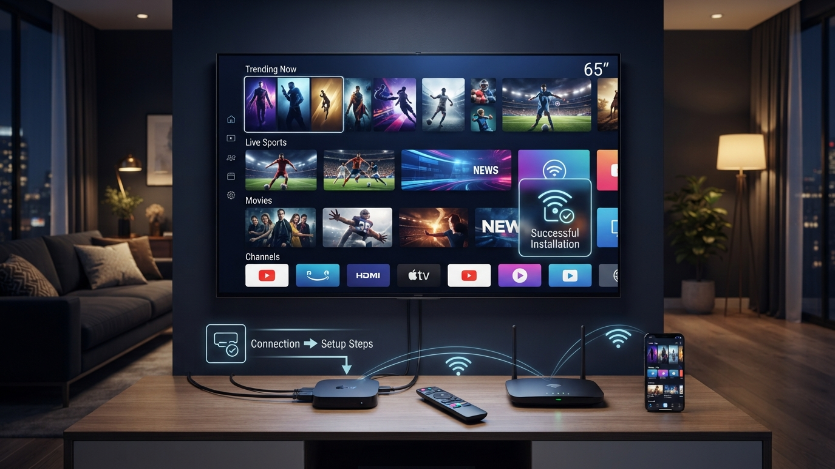
Billing support requires accurate records.
Provide the payment date, amount, payment method, order email, selected duration, and connection count. Do not provide the complete card number.
The current checkout allows customers to indicate a new subscription or renewal and select the device, connections, duration, and payment option.
Before submitting an order:
- Verify the email spelling.
- Confirm the connection count.
- Check the duration.
- Review the one-time total.
- Save the confirmation.
- Read the applicable terms.
When a payment is completed but no details arrive, check spam and promotional folders first. Then contact support with the transaction record.
Do not place a second order immediately unless support confirms that the first payment failed. Duplicate payment can create a separate billing problem.
Password and Credential Security
Treat IPTV credentials as private account information.
Do not post the username, password, M3U URL, portal address, or server information in Reddit, Telegram, WhatsApp groups, public forums, or screenshots.
A complete M3U link may contain the username and password inside the URL. Hiding only the visible password field is not enough when sharing a screenshot.
Use trusted devices and applications. Remove credentials from a device before selling, returning, or giving it away.
When account information may have been exposed, contact support and request replacement credentials rather than continuing to share the same access details.
How to Submit an Effective Support Request
Use the verified contact page
Open the Digital Lizard IPTV contact form.
Avoid sending private information to an account discovered through an unrelated public comment.
Write a precise subject
Use a subject such as:
“Login rejected on Fire TV — order email confirmed”
or:
“EPG missing on LG TV — streams working”
This allows the request to be categorized quickly.
Identify the order
Provide the order number or email associated with the subscription.
The current contact page specifically asks existing customers to include this information for technical issues.
Describe the setup
State the device model, operating system, player name, login method, and connection type.
Avoid unnecessary background information.
Include the exact failure
Copy the error text and explain whether the issue affects one source or the full account.
State when it began.
List completed checks
Mention restarts, credential verification, Ethernet testing, cache clearing, application updates, and alternative device tests.
Protect sensitive information
Mask passwords, playlist URLs, payment information, and private account details.
Support can request specific information through an appropriate private channel when required.
Conclusion
Effective Digital Lizard IPTV customer support begins with a structured report rather than a vague complaint.
Identify the order, device, player, login method, exact error, affected categories, connection type, and troubleshooting already performed. This helps separate account problems from application, hardware, network, and source issues.
Use the official contact page for unresolved problems and the setup guide for device-specific configuration.
Digital Lizard IPTV Customer Support FAQ
How do I contact Digital Lizard IPTV support?
Use the contact page on digitallizard-iptv.com and include the order number or subscription email, device model, application, and exact problem.
What information should I include?
Provide the order reference, device, player, login format, exact error, time of failure, affected sources, connection type, and troubleshooting completed.
Why is my login being rejected?
Possible causes include incorrect credentials, extra spaces, an expired subscription, wrong server address, incorrect login mode, or simultaneous-connection limits.
Why does one source buffer while others work?
A problem affecting one source is more likely to be source-specific. Test several alternatives and report the affected category and approximate time.
Why is every source buffering?
Check Wi-Fi quality, router performance, household traffic, device resources, decoder settings, application cache, and internet routing. Test Ethernet and another supported device.
Why is the EPG empty?
The guide may require synchronization or a manual refresh. The player’s date, time zone, guide source, and application configuration can also affect EPG information.
Can support fix an incompatible application?
Support can recommend another setup path, but it cannot change the technical limitations of an unsupported operating system or outdated device.
Should I send my password to support?
Do not send credentials through public or unverified channels. Provide identifying information and the error first, then follow secure instructions from the verified contact route.